The phrase PicACG 3.0 Android gets searched for one simple reason: people want the comfortable PicACG reading experience on the phone in their pocket, and the 3.x generation of the Android build is the version most of them end up with. This guide walks through what the 3.0 line actually changed, how to pick the right APK for your device, how to install it without fighting Android's security prompts, and how to tune the reader so long sessions feel effortless rather than fiddly.
Everything below is written for people who want a clean, working setup on the first attempt. You will not need a computer for most of it, and none of it requires rooting your phone.
What "PicACG 3.0 Android" Refers To
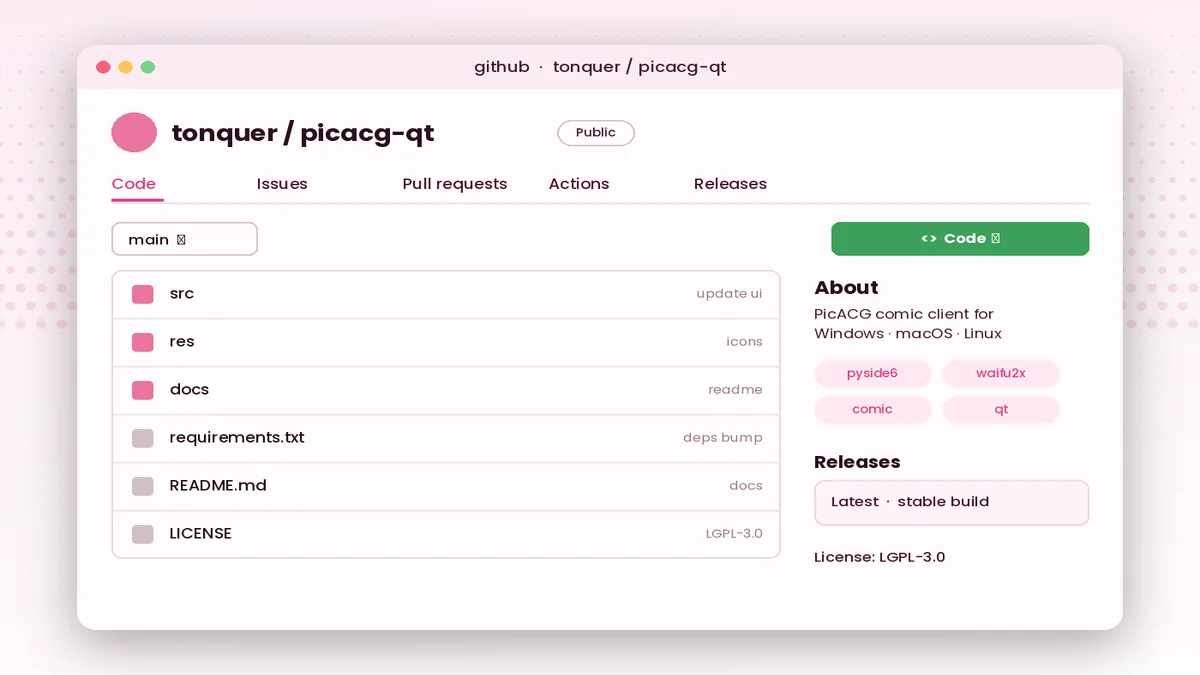
PicACG started life as a comic platform with its own official app, and over time an ecosystem of community clients grew around it. On the desktop, the best known is the Qt-based client maintained on GitHub. On Android, the name most people mean when they type "PicACG 3.0" is the 3.x generation of the Flutter-based Pica Comic app, which reads PicACG alongside several other comic sources.
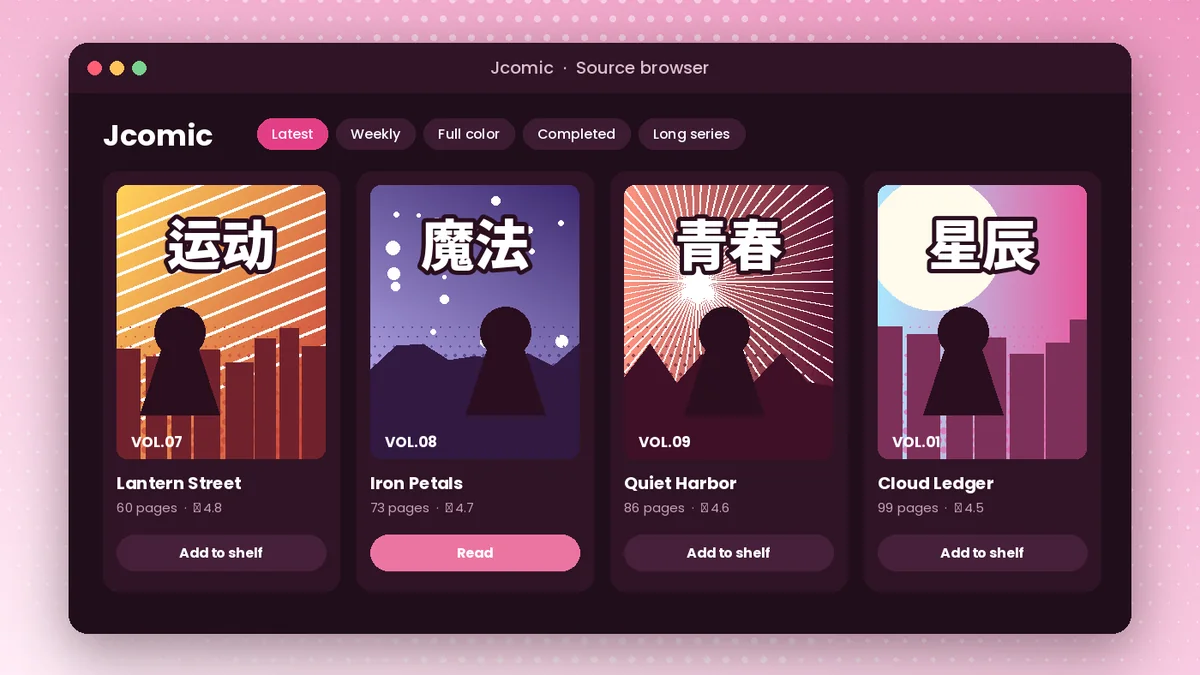
The jump to version 3.0.0 was a meaningful one. Before it, every source the app understood had to be written directly into the code. From 3.0.0 onward, the app gained support for custom comic sources that can be added inside the app itself. That single change turned a PicACG reader into a general comic hub, and it is why so many tutorials, forum threads and download pages still reference "3.0" as the starting point.
A few practical consequences follow from that history:
- Builds in the 3.x line share the same overall layout, so a guide written for 3.0 still applies to later 3.x releases in almost every detail.
- Settings, favorites and download folders carry over between 3.x updates when you install a newer APK on top of an older one.
- The original repository was archived by its author in late 2024, with development continuing in a successor project. Archived does not mean broken; it means the code is frozen and the published builds are what they are.
Before You Download Anything
Spend two minutes on preparation and the rest of the process becomes predictable.
Check your Android version
The 3.x builds target modern Android. Any phone running Android 7.0 or newer is a realistic candidate, and Android 9 or newer gives the smoothest experience because image decoding and storage permissions behave more consistently. Open Settings → About phone and note the Android version before you continue.
Find your processor architecture
Release pages for Flutter apps frequently offer several APKs, each compiled for a specific processor family. Installing the wrong one either fails outright or produces an app that refuses to open.
| APK label | Who it is for |
|---|---|
| arm64-v8a | Nearly every phone sold in the last six or seven years. Pick this if unsure. |
| armeabi-v7a | Older or budget 32-bit devices. |
| x86_64 | Android emulators on a PC and a handful of tablets. |
| universal | Works everywhere but is larger, because it contains all three. |
If you want certainty, install any free "device info" style app and look for the line labelled ABI or instruction set. When a universal APK is offered and storage is not a concern, it is the zero-risk choice.
Free up storage
The app itself is modest in size, but comics are not. A single long series downloaded for offline reading can occupy several hundred megabytes. Aim for at least 2 GB of free space if you plan to use offline downloads at all.
Downloading the APK Safely
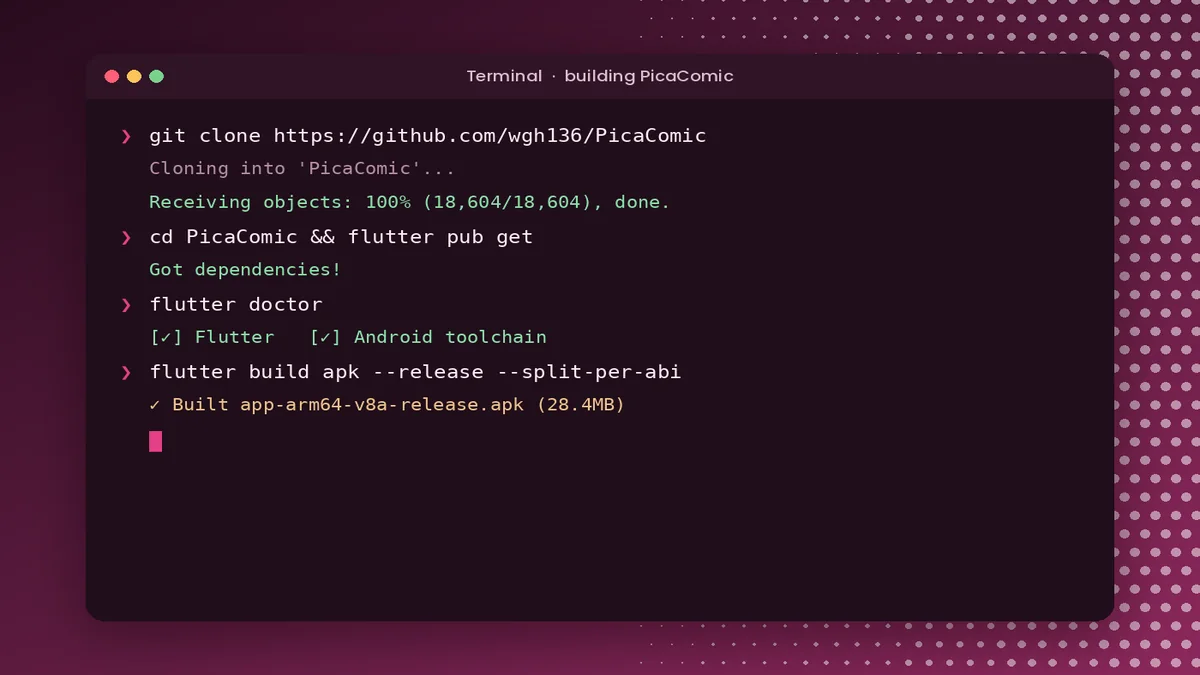
The single most important habit with any comic client distributed outside the Play Store is to download only from the project's own GitHub release page. Repackaged APKs on mirror sites are the main source of trouble: injected adverts, trackers or outdated builds that look current.
A safe download routine looks like this:
- Open the official repository in your mobile browser and tap Releases.
- Choose the newest release marked as the latest, unless you have a specific reason to stay on an older one.
- Expand the Assets list and tap the APK that matches your architecture.
- When your browser warns that the file type can be harmful, confirm that the source is GitHub and proceed.
Tip: if a release lists SHA-256 checksums, compare them using any checksum utility from your app store. Matching values confirm the file arrived intact and unmodified.
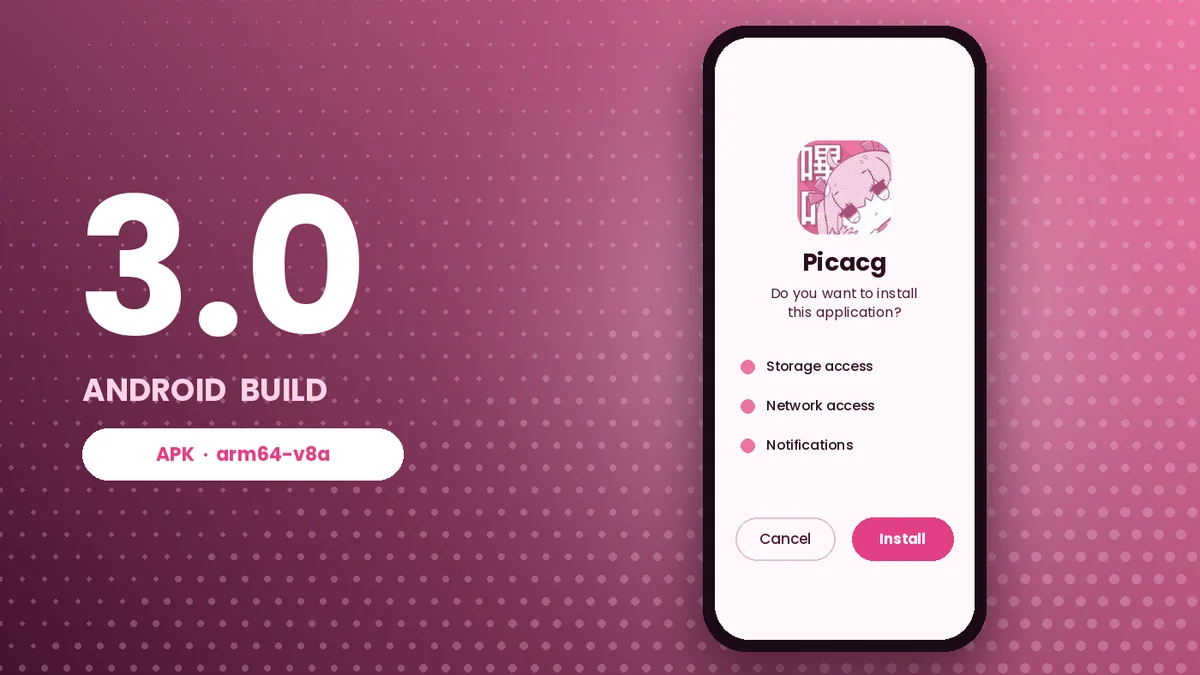
Installing PicACG 3.0 on Android
Android blocks installation from outside the Play Store by default. Modern versions handle this per app rather than as one global switch, which is safer and only slightly more effort.
- Open your Downloads folder or the browser's download list and tap the APK.
- Android will say that your browser is not allowed to install unknown apps. Tap Settings in that message.
- Enable Allow from this source for the browser you used, then press back.
- Tap Install. The process usually completes in a few seconds.
- Once finished, return to the same setting and switch it off again. You can re-enable it whenever an update arrives.
On some brands, notably those with heavier custom skins, an extra "security scan" screen appears before installation. It is safe to let it run; if it flags the file as unknown, that simply means the app did not come from the manufacturer's store.
Play Protect warnings
Google Play Protect may display a message saying the app is not recognised. This is common for any independently distributed APK. If you downloaded from the official GitHub release, you can tap More details → Install anyway. If you downloaded from anywhere else, stop and fetch a clean copy instead.
First Launch and Account Setup
When the app opens for the first time it asks for storage-related permissions on older Android versions, or uses scoped storage on newer ones. Granting access lets the app save downloaded chapters where you can find them later.
Signing in to PicACG
PicACG content requires an account. From the source or account section, choose PicACG and sign in with your existing username and password. A few points save frustration here:
- Use the same credentials you use on the official platform; the client does not create a separate account.
- If sign-in times out, the problem is almost always the network route rather than your password. Switching the image or API line in the network settings usually solves it.
- Keep your password unique. A comic account is a low-value target, but reused passwords spread risk to accounts that matter more.
Picking the right content filters
PicACG hosts a large catalogue that includes mature material. The app exposes category and tag filters, and it is worth spending a minute hiding the categories you never want to see. Your home feed, rankings and search results become noticeably more relevant once those filters are in place, and anyone who borrows the phone will not be greeted by something unexpected.
Tuning the Reader for Long Sessions
The default reader settings are sensible, but a few adjustments make a large difference on a phone screen.
Reading direction and layout
Manga traditionally reads right to left, while webtoons and many Chinese manhua scroll vertically. Set the default mode to whichever you read most often, then override it per comic when needed:
- Left to right paging suits Western comics and many manhua.
- Right to left paging matches the original layout of Japanese manga.
- Continuous vertical scroll is ideal for long-strip comics and is the most comfortable one-handed mode.
Tap zones and volume keys
Enabling volume-key page turning lets you read on a crowded train without touching the screen. Tap zones can be inverted for left-handed use. Both options live under the reader settings and are worth configuring in the first week.
Image quality versus data use
PicACG offers different image qualities. On mobile data, medium quality keeps pages legible while cutting usage significantly. On Wi-Fi, original quality is the obvious choice. Some builds let you set these separately so the app switches automatically depending on the connection.
Screen brightness and keep-awake
A reader-specific brightness setting avoids the jarring jump between a bright home screen and a dim reading session at night. Turn on the keep-screen-awake option so the display does not dim halfway through a page.
Offline Downloads on Android
Offline reading is where the app earns its place on a phone. Long flights, unreliable mobile signal and data caps all stop mattering once a series is stored locally.
- Open a comic's detail page.
- Tap the download action and select the chapters you want; a long press often enables multi-select.
- Watch progress in the downloads section. Interrupted downloads resume rather than restarting.
- Read from the local library, which works with no connection at all.
A sensible habit is to download a few chapters ahead of where you are reading rather than entire series at once. It keeps storage tidy and spreads bandwidth use over time.
Where files are stored
On Android 10 and newer, apps save into their own scoped storage unless you choose a custom folder. If you want downloaded comics to be visible to other apps, or to back them up, select a custom directory in the download settings before your first large download.
Updating Without Losing Anything
Because the app is installed outside the Play Store, updates are manual. The process is straightforward:
- Download the newer APK for the same architecture from the official release page.
- Tap it and choose Update when Android asks.
- Open the app and confirm your favorites and downloads are present.
Installing a newer version over an older one preserves data as long as both builds were signed by the same developer key. If Android reports that the package conflicts with an existing one, it usually means the existing install came from a different source. In that case, export or note your favorites, uninstall, and install the official build fresh.
Common Problems and Quick Fixes
| Symptom | Likely cause | Fix |
|---|---|---|
| "App not installed" | Wrong architecture or signature conflict | Use the matching ABI or the universal APK; remove older unofficial copies first |
| Opens then closes instantly | Incompatible build for the device | Try the universal APK; confirm Android version is supported |
| Images load slowly or not at all | Slow route to image servers | Change the image line in network settings |
| Login spins forever | API route blocked or congested | Switch API line or try a different network |
| Downloads stop overnight | Battery optimisation killing the app | Exclude the app from battery optimisation |
The battery optimisation issue deserves extra attention. Manufacturers aggressively pause background apps to save power, which silently halts long download queues. Open Settings → Apps → [app] → Battery and set it to unrestricted while large downloads run.
Privacy and Safety Habits on Mobile
A comic reader does not need access to your contacts, camera, microphone or location. If any build you install requests those permissions, treat it as a red flag and remove it. The legitimate permissions are network access, storage or media access, and optionally notifications for download progress.
Keep the app updated when new releases arrive, avoid "modded" or "premium unlocked" variants from unknown uploaders, and lock the app behind your phone's app-lock feature if others use your device. Mature content filtering, combined with an app lock, keeps your reading private without much effort.
PicACG 3.0 Android Compared With the Desktop Client
Many readers end up using both. The Android build is ideal for short sessions and commuting; the desktop client on Windows, macOS or Linux shines for long reading sessions on a large screen and for heavier tasks such as batch downloads and waifu2x upscaling. Since both read from the same PicACG account, your favorites list follows you across devices, making it easy to discover a series on the desktop and continue it on your phone.
Final Checklist
Before you settle in with your first series, confirm the essentials:
- The APK came from the official GitHub release page and matches your processor.
- Installation from unknown sources was switched back off after installing.
- You are signed in, and unwanted categories are filtered out.
- Reading direction, tap zones and image quality suit how you actually read.
- Battery optimisation is relaxed for the app if you rely on downloads.
With those boxes ticked, PicACG 3.0 on Android becomes what it should be: a quiet, dependable window into a vast comic library, ready whenever you have a spare five minutes or a long evening ahead.
Frequently Asked Questions
Is PicACG 3.0 Android available on the Play Store?
No. The community builds are distributed through GitHub releases, so installation is done from an APK file. Always download from the official repository rather than third-party mirrors.
Can I use one account on Android and desktop at the same time?
Yes. The clients sign in to the same PicACG account, so favorites and history are tied to the account rather than to a single device.
Which APK should I pick if I am not sure?
Choose arm64-v8a for any modern phone, or the universal APK if it is offered and you would rather not check your device's architecture.
Will updating delete my downloaded comics?
Not when you install an official newer build over an official older one. Data is only lost if you uninstall first or switch between builds signed with different keys.
Why do pages load slowly in the evening?
Peak-hour congestion on a particular route is the usual cause. Switching to a different image line in the network settings typically restores normal speed within seconds.